
Skip to main content
How Can We Help?
Search for answers or browse our knowledge base.
Headings & Organization
To improve your users’ experience, you can organize your service rates by adding headings and arranging services in your preferred order. Headings help group related rates and make pricing easier to navigate.
You can add headings to:
-
Service rates
-
Additional services (per service type)
-
Prepaid packages
How to Add a Heading
- Go to Settings
- Select Pricing, then choose your service type
- Click Add Heading
- Enter a name and, if desired, a description
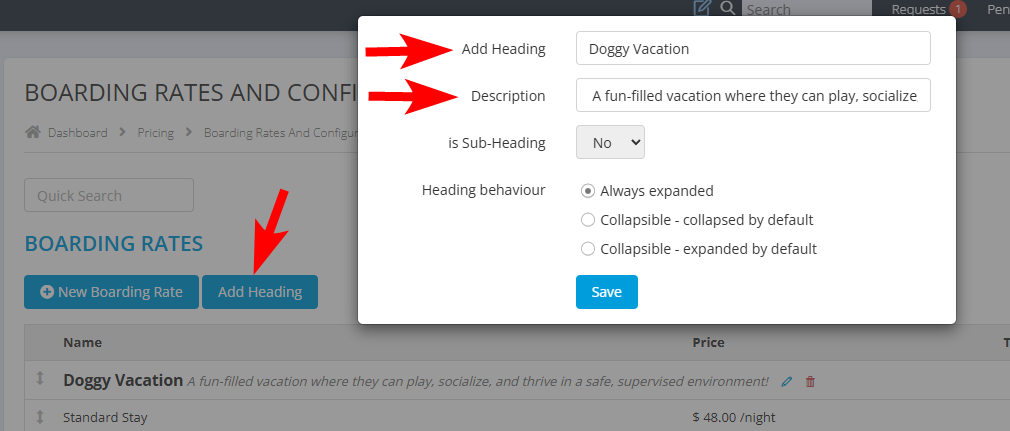
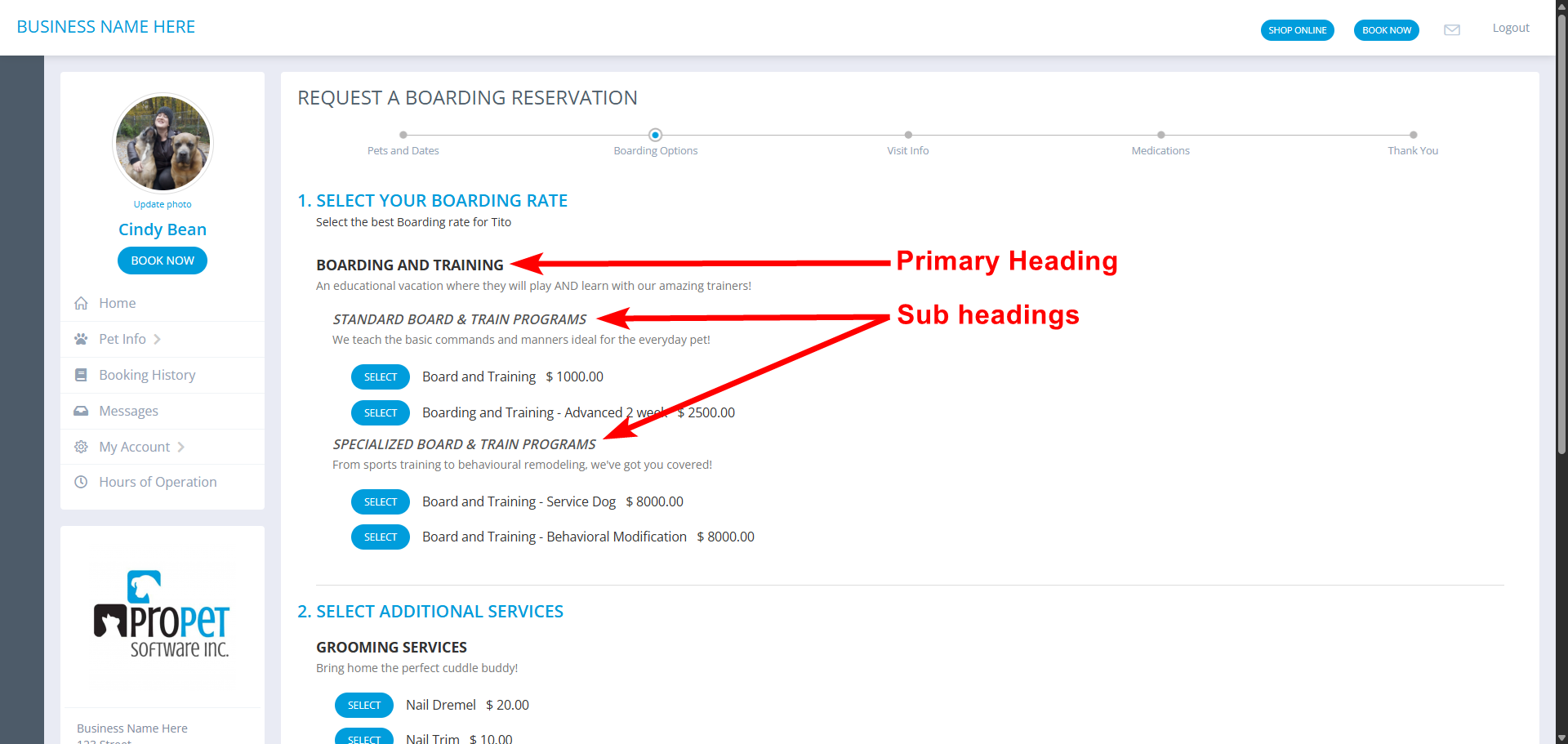
- Choose whether the heading should be a subheading
- Select the heading behavior:
-
Always expanded: All active rates under this heading are always visible
-
Collapsible (collapsed by default): Active rates are hidden until the heading is expanded
-
Collapsible (expanded by default): Rates are visible but can be collapsed if needed
-
- Click Save
How to Reorder Headings and Services
You can rearrange headings and service rates to match your preferred layout.
- Go to Settings
- Select Pricing, then choose your service type
- Locate the heading or rate you want to move
- Click and hold the grey arrow next to it

- Drag it to the desired position and release
- Repeat as needed for all headings and rates within each service type

Recent Comments