
Search for answers or browse our knowledge base.
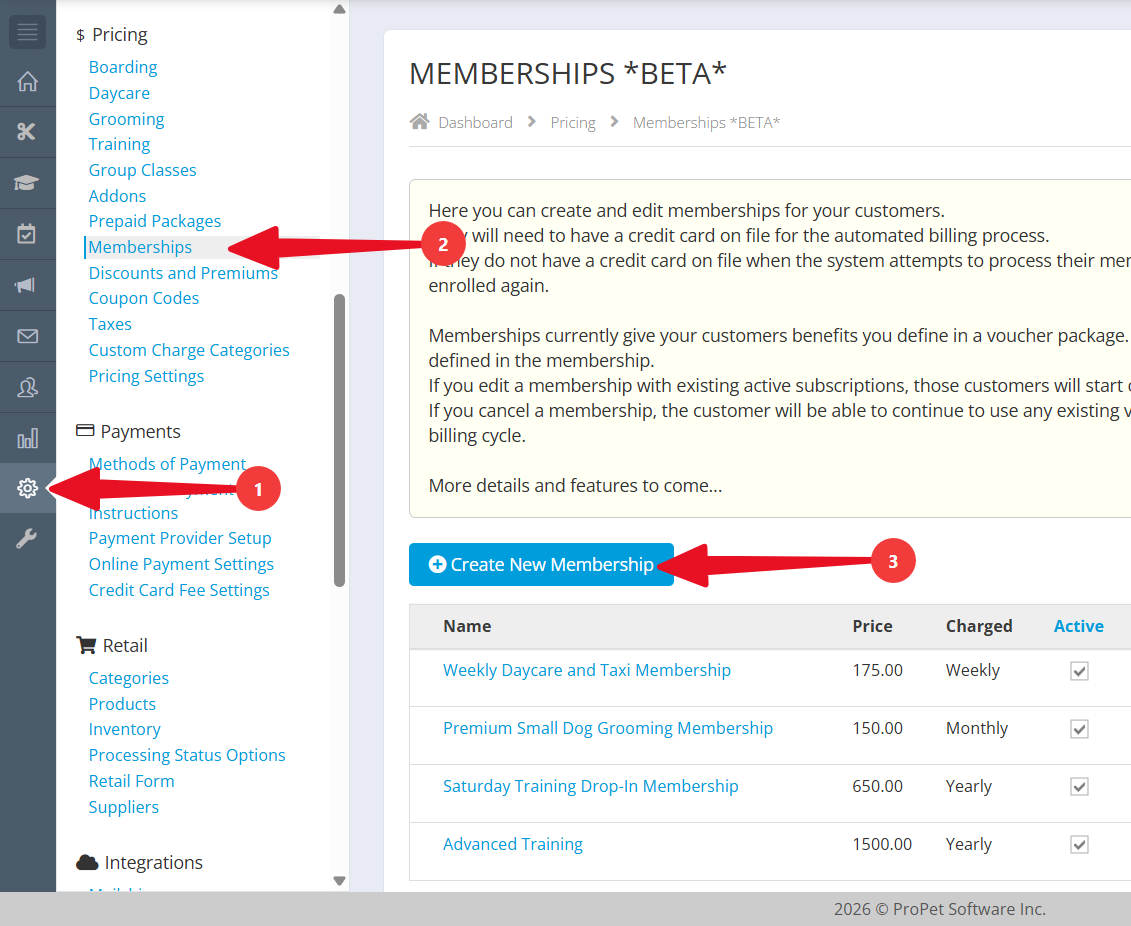
To set your memberships up, please log in to your ProPet account and go to Settings > Pricing > Memberships. The first step will be to create the memberships that you offer. To do so, please click the “Create New Membership” button.
You can choose to publish and/or set the membership to admin only – which currently doesn’t apply but will matter once memberships are available in the customer portal. You will give your membership a name and can include a description of what it entails (for example, the billing cycle, the included passes, etc). 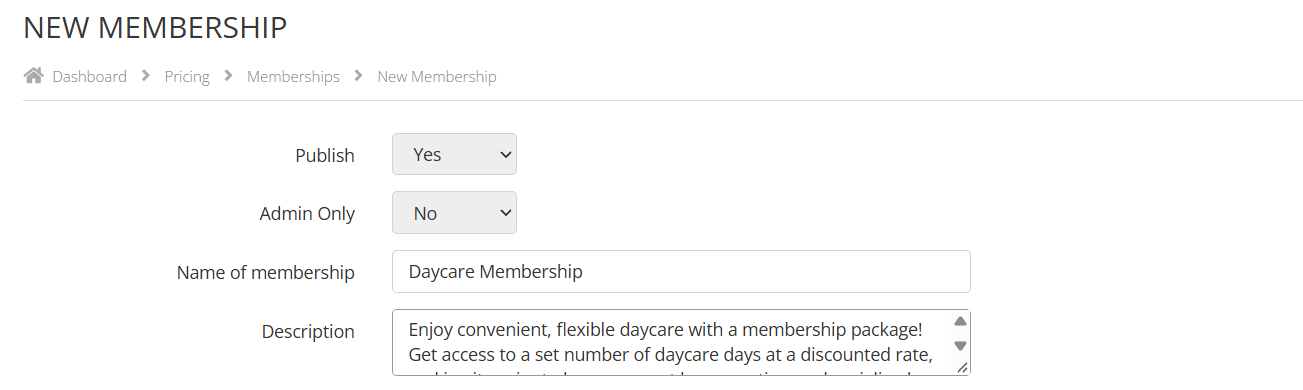
Next, you will choose the billing cycle from the options of weekly, monthly or yearly. Setting this will indicate how often your registered customers will be charged for the membership and have a new benefit package applied to their profile. You can then choose which expiration option you would like by setting the “Membership passes must be applied to bookings within the billing cycle” option to Yes or No.
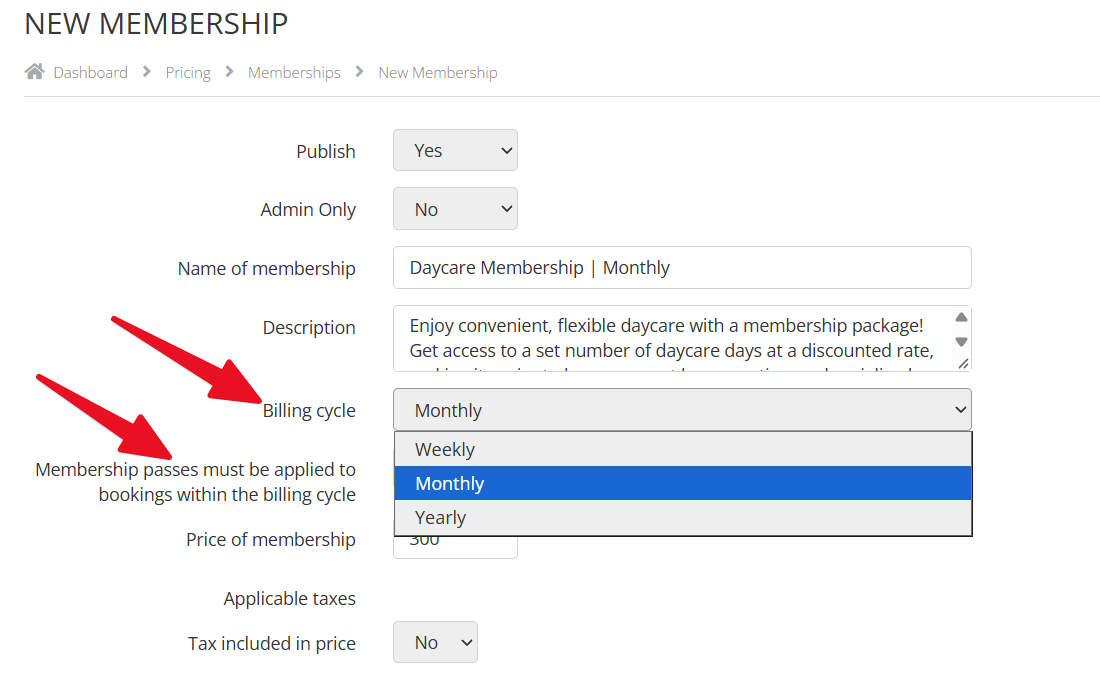
Then, you will enter in the price of the membership for each billing cycle and add any applicable taxes.
Lastly, you will choose the included membership benefits. To do so, you would choose the membership package type. The “Share passes across one or more products” will let you specify the total quantity of passes in the package and then select which rate types these passes can cover. You can also determine if the selected rate type uses 1 full pass, half a pass, or more than one pass when added to a booking. The “Assign the number of passes to individual products” package type allows you to select the rate types, and how many passes of each rate, that are included in the package.

To finish the membership creation, you will scroll to the bottom of the page and click the Save button.
Now that you have created your Membership, it’s time to add customers!

Recent Comments